Use STL for basic surface geometry in a printing workflow, OBJ for a widely supported mesh exchange with separate material files, and GLB for a packaged glTF asset that can carry materials, scene structure and animation.
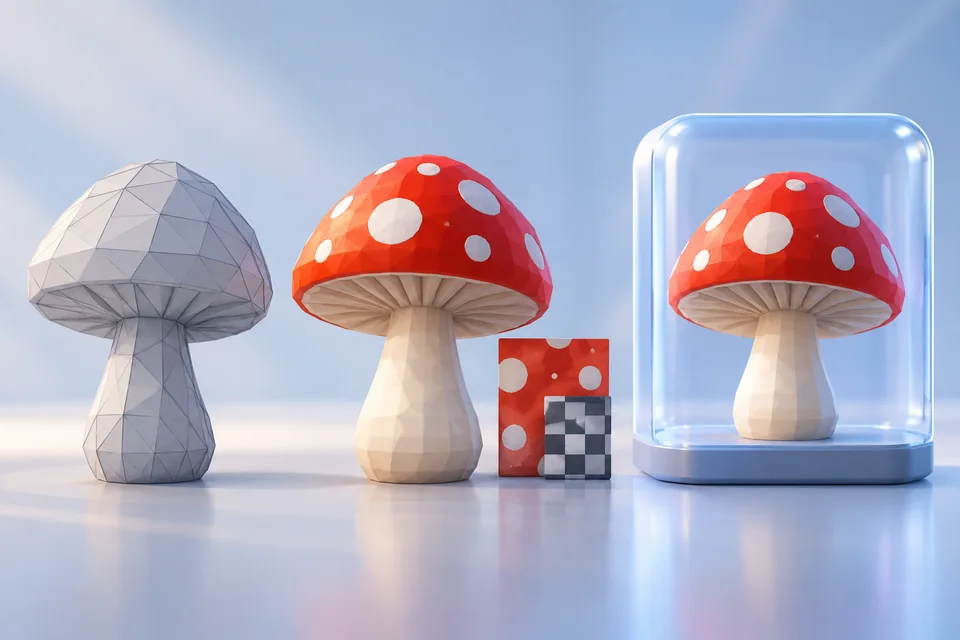
3D file formats: what needs to survive the export?
Choose STL for triangle-surface delivery, OBJ for mesh exchange with possible companion files, and GLB for a packaged glTF scene. These 3D file formats carry different information; none proves that a model is clean, complete or licensed for your project.
| Format | Useful for | Check at the destination |
|---|---|---|
| STL | A surface for many printing workflows | Units, dimensions and closed geometry; no standard texture workflow |
| OBJ | Mesh exchange between applications | Material files, image paths and shading interpretation |
| GLB | Packaged scenes for web and real-time delivery | Materials, animation and extension support in the receiver |
STL: a surface without reliable physical units
STL carries the least scene information. ASCII and binary encodings can represent the same triangle surface. Neither preserves modeling history or reliably declares whether 20 coordinate units mean millimeters or inches.
For printing, verify the export in the actual receiving software. Open the STL, confirm dimensions and inspect sliced layers. Successful parsing does not establish printability.
OBJ: keep the material and image files
OBJ is a mesh-exchange format. Geometry and texture coordinates may arrive with a material file and separate texture images. Sending only the OBJ can leave the recipient with an untextured object. The Blender OBJ manual documents importing a matching MTL and exporting that material file alongside the geometry.
For an OBJ package, preserve folder structure and reopen the package. Shading may still differ because applications interpret materials differently. Check file paths before exporting again.
GLB: a packaged glTF scene
For web delivery, consider GLB. It can package geometry, materials and animation in the binary glTF container. Khronos describes glTF as a format for efficient transmission and loading of scenes and models.
Format capabilities do not guarantee the contents of a particular asset. A GLB can be static, and its receiving viewer may not support every extension used by the exporter.
Choose 3D file formats for the next application
- Keep the editable source project.
- Check which 3D file formats the receiving tool supports.
- Export the intended objects and related assets.
- Reopen and verify dimensions, orientation, materials and animation.
For example, keep a Blender project for editing, deliver GLB for a web preview and STL for a print. These 3D file formats provide different deliverables; they are not complete copies of the source scene.
Find what went missing
Missing OBJ textures suggest a companion-file or path problem. A tiny STL suggests a unit mismatch. A GLB that looks different may involve lighting or unsupported materials. Identify the missing information before exporting in another format.
Can I convert 3D file formats by renaming the extension?
No. Use software that reads the source and writes the destination format. Renaming changes neither the contents nor the available data.
Which 3D file formats do the tools here open?
Our tools accept ASCII and binary STL only. OBJ and GLB are workflow references, not supported uploads. When choosing a model download, check the included 3D file formats before committing to an asset.
Try the same textured box in three formats
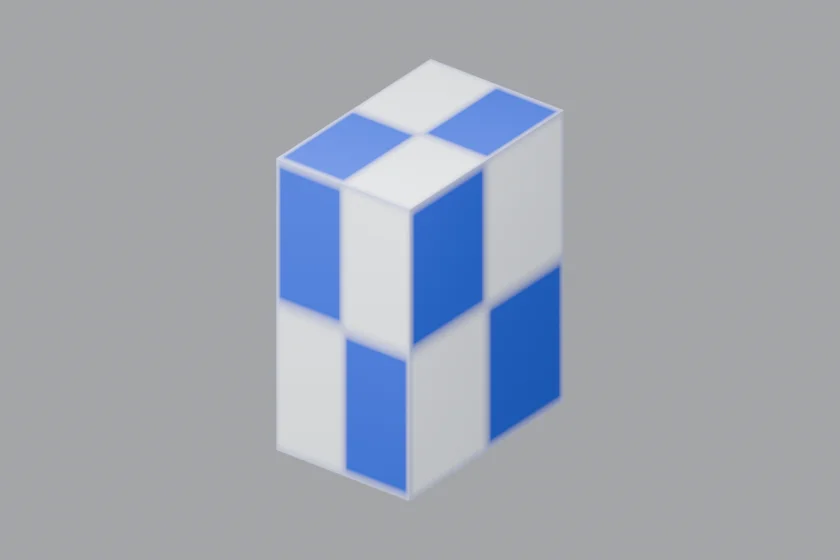
Download the original example pack, including the Blender source, OBJ/MTL/PNG package, GLB, STL and reproduction script. The geometry and checker texture are released under CC0. On October 21, 2026, we exported and reimported these files using Blender 4.5.9 LTS Python operators in background mode.
| Delivered files | Observed after reimport | Size convention |
|---|---|---|
| checker-box.obj + checker-box.mtl + checker.png | One material and a readable external 64 × 64 texture | Bounds 0.02 × 0.03 × 0.04; this example uses meters by agreement |
| checker-box.glb | One material and an embedded, readable 64 × 64 texture | Bounds 0.02 × 0.03 × 0.04 m in the receiving Blender scene |
| checker-box.stl | 12 triangles, no material or image texture | Export scaled by 1,000; interpret bounds 20 × 30 × 40 as mm |
The STL contains the same box surface, but the blue squares disappear because they were never geometry. Open that file in the STL Viewer to inspect the plain surface, then select millimeters in the size checker. Do not choose meters for the already-scaled STL.
For the OBJ, keep the three named files together. Its MTL refers to checker.png by a relative path; sending the OBJ alone omits that dependency. The GLB carries the image inside the file. These results cover this small static example in Blender; they do not establish support for every material, extension, animation or destination application. The verification record lists the observed bounds and loaded images.
Research method & official sources
Initial source review . This page uses official documentation; later source checks and any executed file examples are dated and scoped in the text. We have not benchmarked AI generation quality or performed physical print tests.
Read our editorial and affiliate standards. Product recommendations do not depend on an affiliate relationship.