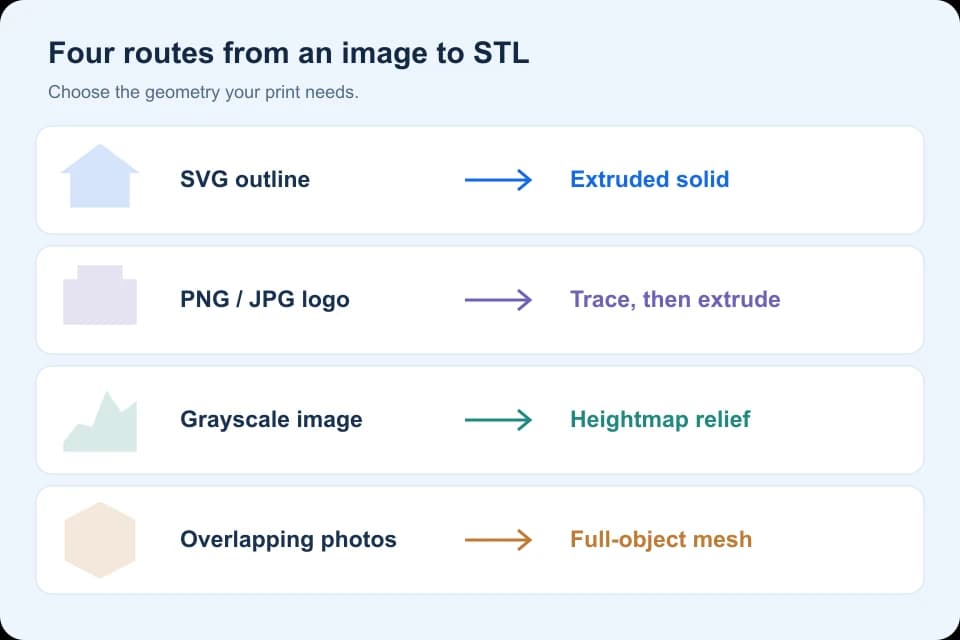
To convert a flat logo to STL, use a closed SVG outline, import it as curves in Blender, fill and extrude it, then export and check the dimensions. Use the supplied house outline and 60 × 40 × 3 mm reference mesh to practice. A photograph of a full object needs a different method.

SVG to STL in Blender: the result you will make
Import a closed SVG as a curve, fill and extrude it, convert the result to a mesh, then export STL. This exercise targets 60 × 40 × 3 mm and includes an actual Blender export, editable scene and verification record. The measured run used Blender 4.5.9 LTS background operators, not a physical print.
If you have a PNG, JPG, heightmap or photographs instead of a closed vector, first choose the appropriate image-to-STL route. A uniform extrusion does not recover the hidden sides of a photographed object.
Download the outline and reference mesh
For the first exercise, use our original house-outline.svg as the starting vector and 60 × 40 × 3 reference STL as a dimension-checking reference. Both files are available under CC0, with provenance notes. The reference STL was generated from the polygon coordinates; it is not a claimed Blender export or a tested physical print.
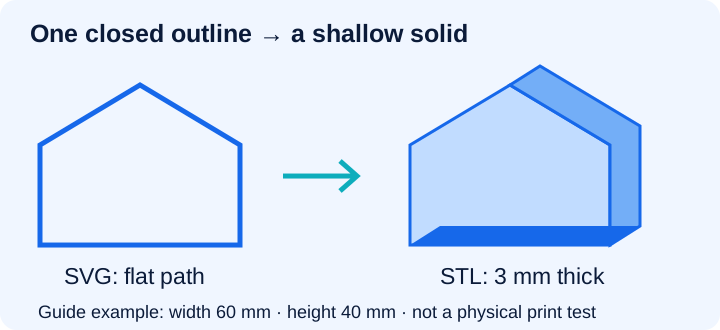
Original construction diagram for the supplied files. The depth is exaggerated for clarity.
This workflow needs Blender and a vector editor for tracing PNG/JPEG outlines. The steps follow the Blender SVG importer, curve and STL documentation. Interface labels can differ in older versions.
1. Trace a closed path, not an embedded bitmap
For the supplied SVG, this is already done: the SVG contains one closed path. For another drawing, trace the logo’s outer boundary and remove specks, overlapping outlines and tiny islands in a vector editor. Convert text and primitive shapes to paths before saving.
The importer requires vector geometry; do not merely place a PNG inside an SVG file. Blender’s documented importer reads SVG path geometry; it ignores embedded images, text objects, gradients and other unsupported features. If your import is empty, check the actual contents of the vector file before changing Blender settings.
2. Import the SVG and fill the outline
Choose File → Import → SVG as Curves (.svg) and select the outline. Select the resulting object in the Outliner; frame it if the imported drawing is too small to see. Keep the curve in its original XY plane for this exercise.
In the curve’s data properties, use a 2D curve and set Fill Mode → Both to cover both sides of the closed area. An open source path may show a line rather than a filled silhouette. Correct the path instead of trying to hide the gap with extra thickness.
In Object Data Properties → Geometry, add Extrude. Blender’s curve geometry documentation explains the setting. Set thickness through the resulting dimensions: the Extrude field alone may not equal the full depth.
3. Set width, height and thickness
For this exercise, use the simple coordinate convention one Blender unit will be interpreted as one millimeter in the exported STL. Keep Scene Unit off during export and export Scale at 1. This is a deliberate convention for this small example, not a recommendation for a mixed-unit production scene.
Open the Item transform panel and set the unrotated solid’s Dimensions to X 60, Y 40, Z 3. The house outline has no fitting features. For a proportion-sensitive logo, scale uniformly in XY and set thickness separately.
Save the editable Blender project. Duplicate the curve so you can return to the original outline. Select the working copy in Object Mode and choose Object → Convert → Mesh. Hide the saved curve copy while inspecting the mesh. Check the caps and side walls on the mesh; a flat surface without closed sides is not the intended solid.
4. Export only the finished solid
Select only the intended model and choose File → Export → STL. Enable Selection Only, use Scale 1, leave Scene Unit off for the coordinate convention above, and retain the intended axis orientation. The STL exporter reference defines these controls.
For a scene already using physical units, keep its convention or explicitly calculate the conversion. STL has no dependable unit declaration; exporter and receiver must agree.
5. Verify the exported bounds: 60 × 40 × 3 mm
Open your exported mesh in the Model Size Checker, choose millimeters, and set scale to 100%. With the original axes retained, expect X 60, Y 40, Z 3 mm. Our supplied reference STL has those bounds and 16 triangles; your Blender triangulation may differ while preserving the same shape and dimensions.
Use the STL Viewer to rotate the solid and inspect both flat faces and the roof edges. These tools verify parsing, appearance and bounding dimensions; they do not certify watertightness or structural strength. Finish in your slicer and inspect the layers before printing.
Verified export in Blender 4.5.9 LTS
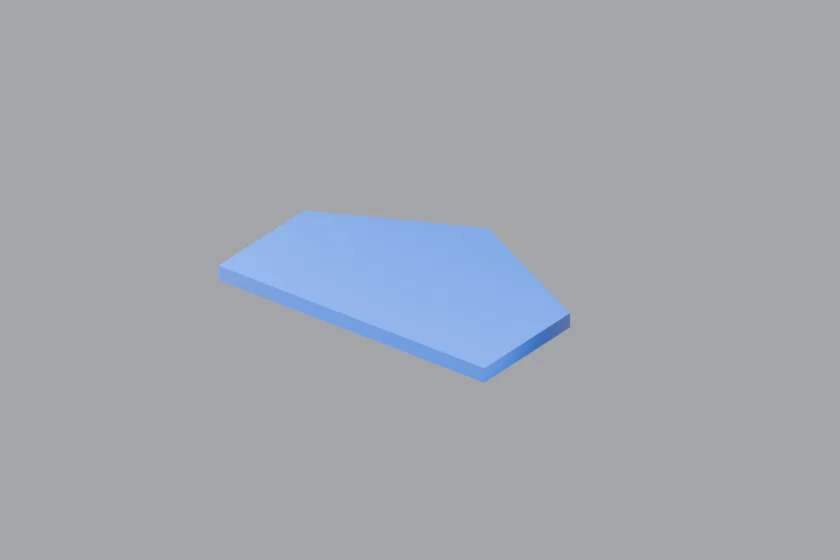
We ran this outline through Blender’s SVG importer, curve fill and extrusion, mesh conversion and STL exporter on October 21, 2026. Reimporting the resulting STL gave 60 × 40 × 3 coordinate units and 16 triangles. The check used Blender Python operators in background mode; it was not a timed manual UI walkthrough or a physical print test.
Download the actual Blender-exported STL, editable scene, or the full example pack and reproduction script. The earlier reference STL is still a separate, code-generated reference.
Troubleshoot import, thickness and scale
- Nothing imports: the SVG may contain an embedded bitmap or unconverted text rather than paths.
- Only the outline appears: close the path and check the curve’s fill configuration.
- The model is 1,000 times too large or small: exporter and importer unit conventions disagree. Return to the known dimensions rather than guessing a scale.
- Tiny detached pieces appear: simplify the source paths or join the intended shapes before extrusion.
Does the STL retain the image’s colors?
No standard texture workflow survives in STL. Keep the source artwork and an appropriate textured asset separately; see STL vs OBJ vs GLB.
Can these steps make a heightmap relief?
No. Reliefs map image values to height and need different thickness checks. These steps produce a uniform extrusion.
Return to the 3D modeling guides for related file and editing workflows.
Research method & official sources
Reproducible example: Blender 4.5.9 LTS background operators imported, extruded, exported and reimported the supplied SVG on October 21, 2026. Source files and verification records are linked below. This is not a manual UI benchmark or a physical print test.
Read our editorial and affiliate standards. Product recommendations do not depend on an affiliate relationship.